
Compare DOCX Documents in Python
Learn how to generate a document that displays a comparison between two different iterations of an important DOCX file.

After multiple rounds of track changes (and undocumented edits) are made to a DOCX document, it’s easy to lose sight of exactly how much changed from the first iteration of that file to the final.
Business contracts, for example, often start with a standard DOCX template before enduring myriad minute wording adjustments in back-and-forth email chains between legal teams. Over time, the volume and significance of those changes can easily get lost in the shuffle, leading to backtracking and delays.
Comparing DOCX Files to Track Cumulative Revisions
By comparing an original DOCX file to a finalized, post-edit iteration of that file, we can clearly and succinctly evaluate the degree of difference between two versions of any important document. To facilitate that process - and to ensure consistent, reliable results - we can automate our document comparison workflows with code.

In this tutorial, we’ll learn how to call an API optimized to handle complex DOCX comparisons. This solution generates a new DOCX file that clearly displays the difference between two input documents, neatly summarizing the journey a file took from its original to final iteration.
Step 1: PIP Install
We’ll begin by installing the client SDK. Let’s run the following PIP install command in our CLI:
pip install cloudmersive-convert-api-clientStep 2: Imports
With SDK installation out of the way, it’s time to add in our imports. Let’s copy those from the below snippet and paste them at the top of our controller:
from __future__ import print_function
import time
import cloudmersive_convert_api_client
from cloudmersive_convert_api_client.rest import ApiException
from pprint import pprint
Step 3: API Key Configuration
To authorize our API calls, we’ll need to paste our Cloudmersive API key in the following configuration snippet:
# Configure API key authorization: Apikey
configuration = cloudmersive_convert_api_client.Configuration()
configuration.api_key['Apikey'] = 'YOUR_API_KEY'
If it’s our first time using Cloudmersive APIs, we can get a free API key by signing up for a free account on the Cloudmersive website. With a free API key, we’ll get a limit of 800 API calls per month (with zero commitments), and we can adjust our plan to accommodate scale at any point.
Step 4: Instance the API
Before we call our DOCX comparison function, we’ll first need to create an instance of the API class:
# create an instance of the API class
api_instance = cloudmersive_convert_api_client.CompareDocumentApi(cloudmersive_convert_api_client.ApiClient(configuration))
input_file1 = '/path/to/inputfile' # file | First input file to perform the operation on.
input_file2 = '/path/to/inputfile' # file | Second input file to perform the operation on (more than 2 can be supplied).
Here, we can add the DOCX files we’re comparing in each of the two input_file variables. I’d recommend using input_file1 for the original document, and input_file2 for the revised iteration of that document.
Step 5: Call the DOCX Comparison Function
Now it’s time to finish up our process by calling the DOCX comparison function.
try:
    # Compare Two Word DOCX
    api_response = api_instance.compare_document_docx(input_file1, input_file2)
    pprint(api_response)
except ApiException as e:
    print("Exception when calling CompareDocumentApi->compare_document_docx: %s\n" % e)
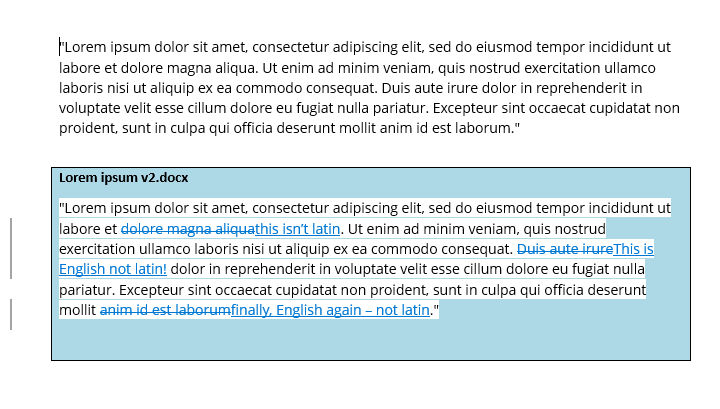
Like I mentioned earlier, we’ll get DOCX file bytes in our API response. This resulting file will clearly display the differences between the original DOCX file and the new iteration of that file.
If we’re curious about exactly what that comparison result looks like, we can refer to the below example. In this example, I compared a slightly modified version of a Lorem Ipsum passage (named Lorem Ipsum v2.docx) with the original passage (named Lorem Ipsum v1.docx):
Have any lingering questions about the API demonstrated in this tutorial? Feel free to reach out to our team – we’d be more than happy to help!